

Add to OBS
Bring your overlay into OBS as a browser source, by hand or automatically with OBS WebSocket.
On this page
Your whole overlay is one browser source in OBS. Scene switches, new widgets and setting changes all arrive through that one source, so you set it up only once.
By hand
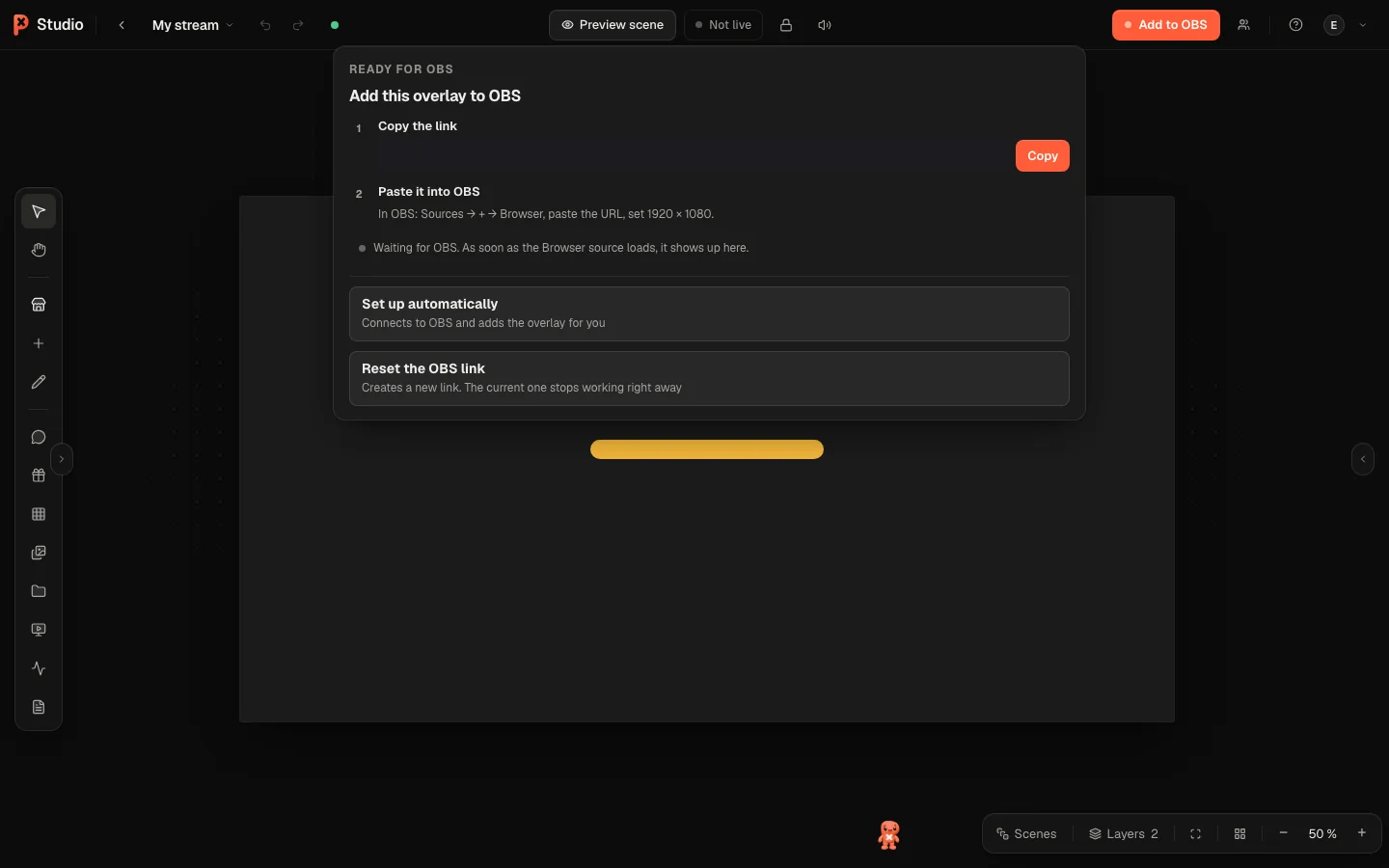
In the editor, click Add to OBS and then Copy link. On the Overlays page you can also use Copy OBS URL in the menu of an overlay card.
In OBS: Sources → + → Browser, paste the URL.
Set the size to your overlay resolution. The default is 1920 × 1080; you can change it in the editor under Canvas resolution.
Click OK. The editor now shows In OBS once the source has loaded.
Automatically with OBS WebSocket
PX Studio can talk to OBS directly and set everything up for you. Only the overlay owner can do this.
In OBS, open Tools → WebSocket Server Settings, enable the server and copy the password.
In the editor, click Add to OBS → Set up automatically. The Set up OBS dialog opens.
Under 1 · Connect to OBS, keep host
127.0.0.1and port4455(unless you changed them) and paste the WebSocket password. Click Connect.Under 2 · Overlay source, click Add source. PX Studio adds the browser source in the right size.
Optional: under 3 · Scenes, Create scenes + link creates matching OBS scenes named "PX · …" and links them to your overlay scenes.
The dialog also offers Repair source if the source was changed by hand, Fit source to canvas and Align selected camera, which lines up your camera source with the webcam frame in your overlay.
A single widget as its own source
Want one widget in a different OBS scene, for example only the chat? Right-click the widget in the editor and choose Copy widget URL. Add it as a browser source the same way.
Check that it works
The Stream check on the home page shows the state of your overlay and OBS. "Opened in a browser, not in OBS yet" means the link works but OBS has not loaded it. See Troubleshooting if something stays red, and OBS troubleshooting for a black source, missing sound or stutter.
All browser source settings
What each OBS setting does, how to route alert audio through the OBS mixer, refresh the cache and scale the source: OBS browser source.
Was this page helpful?