

Widgets
Every widget in PX Studio, what it does and where to find it.
On this page
Widgets are the building blocks of your overlay. Add them with Add in the editor toolbar (W). The list is grouped like this page: Cam & Frames, Alerts & Goals, Games & Interactive, Chat & Community, Text & Info, Music & Media and Built-ins. More widgets and complete packs are in the Marketplace. Effects like Confetti and Emote Storm live in the Quick-Fire Deck instead.
Every widget has its own page with how to set it up, its looks, its chat commands and a reference of all its settings.
Cam & Frames
 Webcam Frame
Alerts & Goals
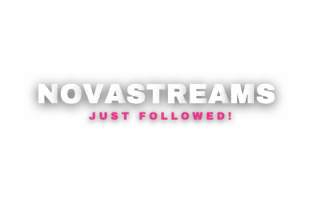 AlertboxPop up an animated alert with sound and voice for every follow, sub, Bits, Kicks, raid and Ko-fi tip.
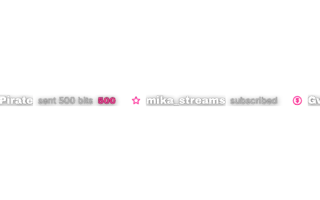 Event ListShow your latest follows, subs, Bits, raids and Ko-fi tips as a scrolling line or a list.
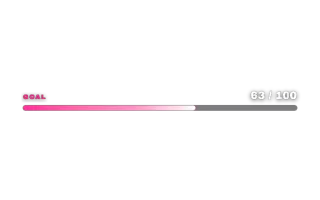 Goal BarShow progress toward a follower, sub, Bits, tip or custom goal that fills up live as your chat pushes it.
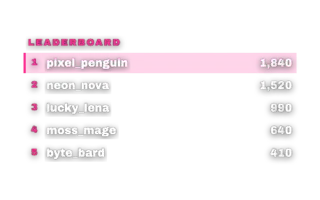 Points LeaderboardShow the viewers with the most loyalty points as a live list, podium or ticker.
Games & Interactive
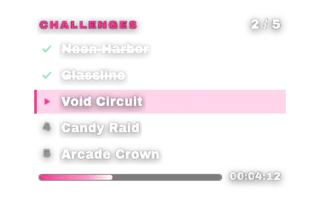 ChallengesRun a checklist of challenges on stream and tick them off from chat, the editor or your phone.
 CounterCount deaths, wins, kills or anything else live, with an optional goal and chat commands for your mods.
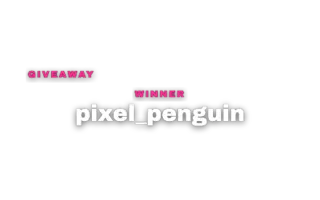 GiveawayShow your PXStudioBot giveaway on stream, from the entrant wall to the countdown and the winner reveal.
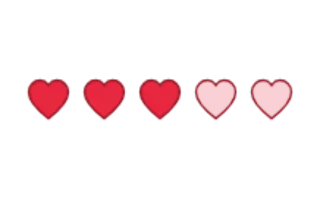 HeartsShow lives or health for challenge runs and take them away live from chat, the editor or your phone.
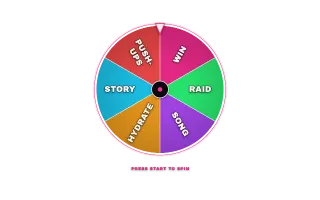 Spin WheelSpin a prize wheel live, by hand or automatically when subs, Bits and tips fill the meter.
Chat & Community
 Emote CounterShow which emotes your chat uses most, as a live leaderboard or as pop-up chat moments.
Text & Info
 Socials
Music & Media
Effects
ConfettiFire a full-screen confetti burst on command, from your Deck or automatically on follows, subs and Bits.Emote StormLet your chat's emotes rain, storm and pop across the whole overlay as viewers type them.
Built-ins
 Built-in elements
Only in existing overlays
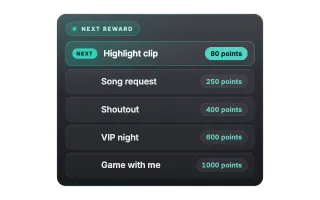 Next RewardShow the cheapest reward in your loyalty shop so viewers know what their points can buy next.
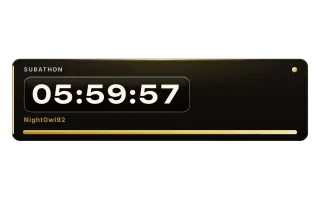 SubathonRun a subathon clock that subs, Bits, tips and raids extend, plus sub goals, donation totals and milestones.
Working with widgets
- Change the style: pick a Look in the settings card. Each look is a complete style; see Looks and presets.
- Move and resize: drag on the canvas, or type exact values in the settings card. See Editor basics.
- Different per scene: each scene keeps its own arrangement, so a widget can be hidden in one scene and visible in another. See Scenes.
- Fire it live: widgets with actions, like Confetti or the Spin Wheel, can be fired from the Deck, the Stream Deck or chat commands.
Was this page helpful?