

Editor basics
The canvas, the toolbar, the floating settings card, layers and undo in the PX Studio editor.
On this page
The editor is where you build your overlay. What you see on the canvas is exactly what OBS shows, live. Everyone on your team can work in it at the same time.
The layout
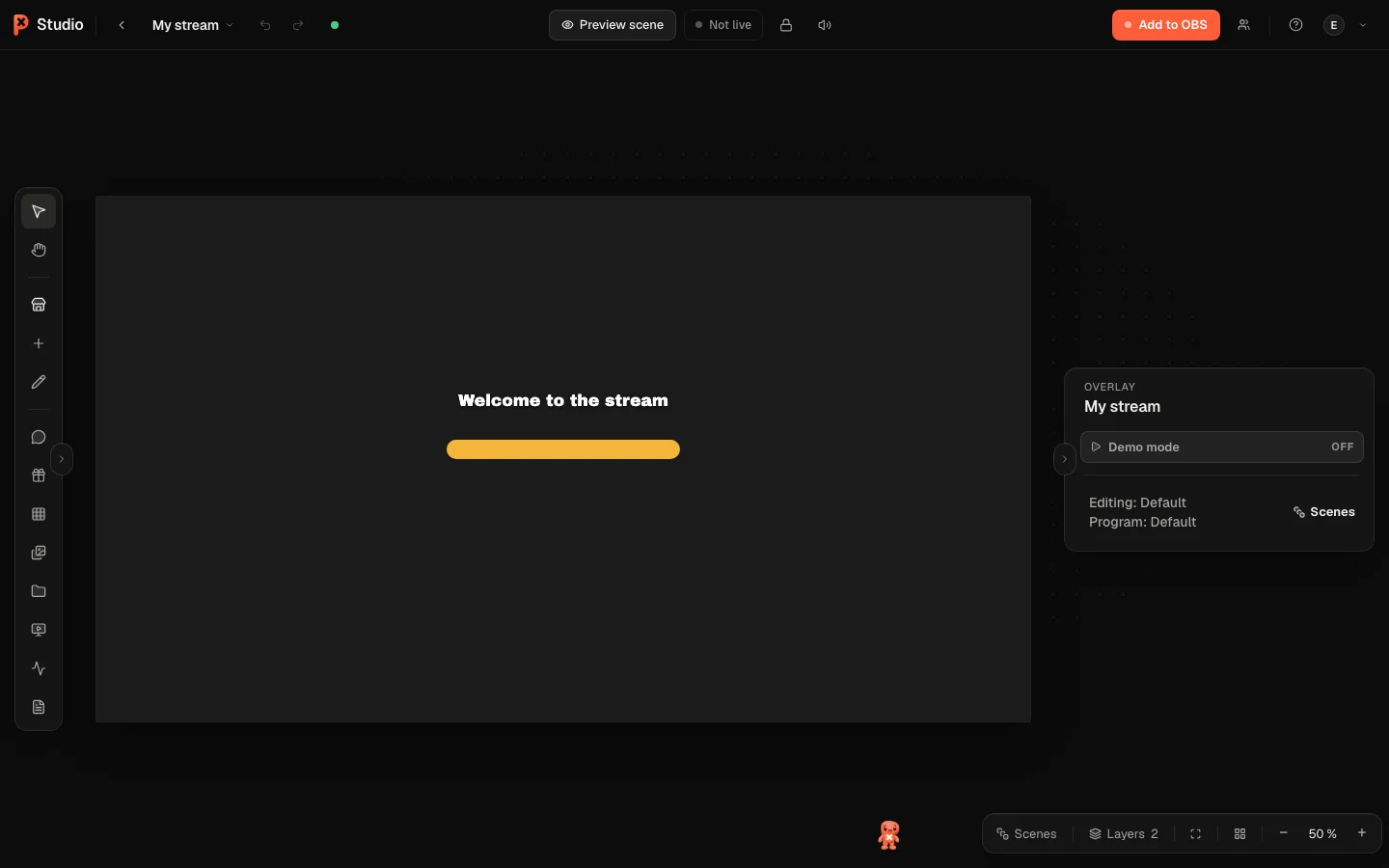
- Canvas in the middle: your overlay at its real proportions. Drag to move, pull the handles to resize.
- Toolbar on the left, in three groups: Create (Select, Hand, Add, Marketplace, Draw), Live (Stream chat, Quick-Fire Deck, Gifs, Sounds, Player, Activity, Giveaway, PXStudioBot) and Manage (Files, Notes).
- Settings card floating on the right: all settings of the selected widget.
- Scenes and layers to switch scenes and reorder widgets.
Add a widget
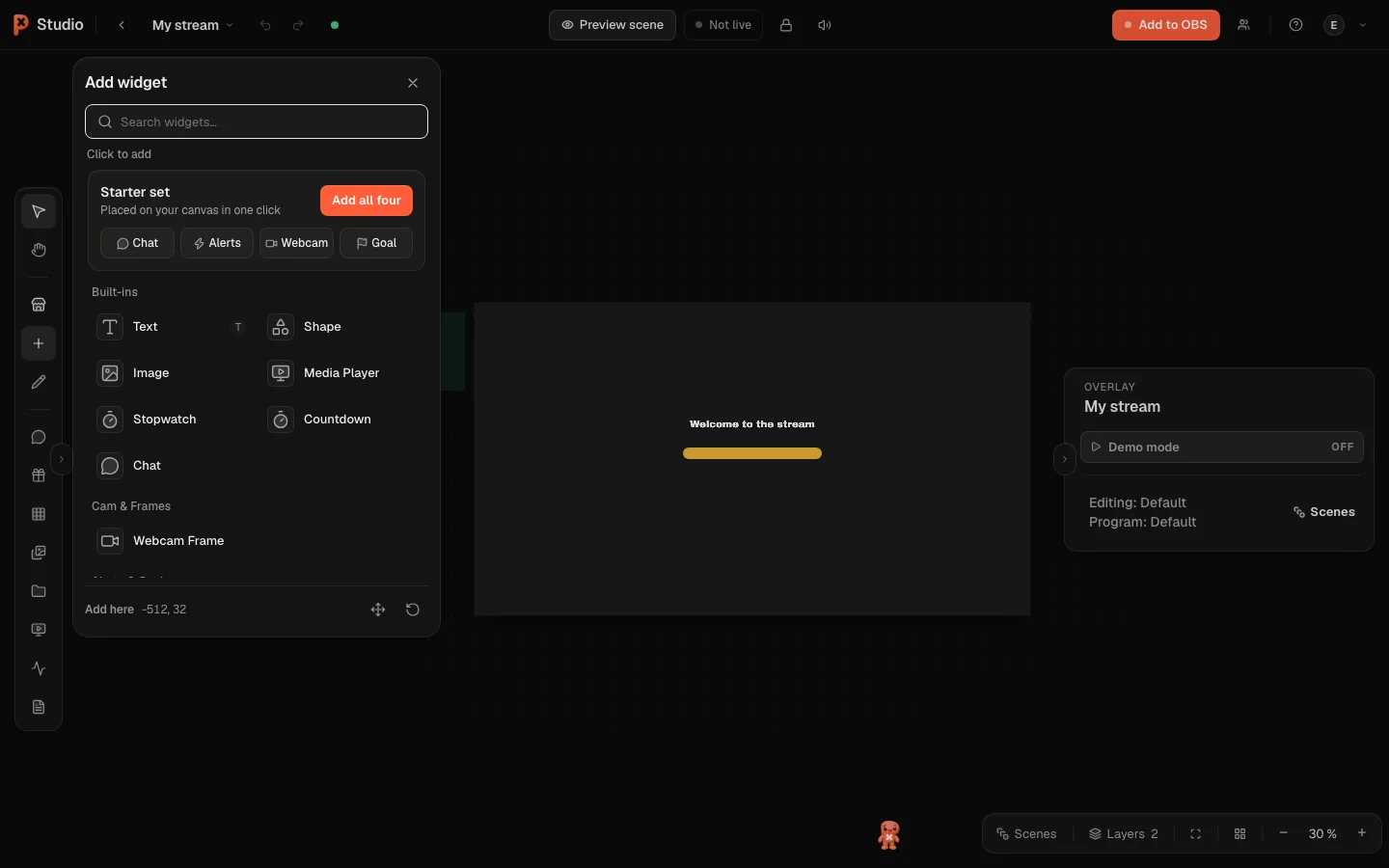
Click Add in the toolbar (or press W).
Browse the categories or use Search widgets…. Click a widget to add it to the canvas.
Drag it into place and resize it. Snapping helps you line things up; hold Ctrl while dragging to turn it off.
Change settings
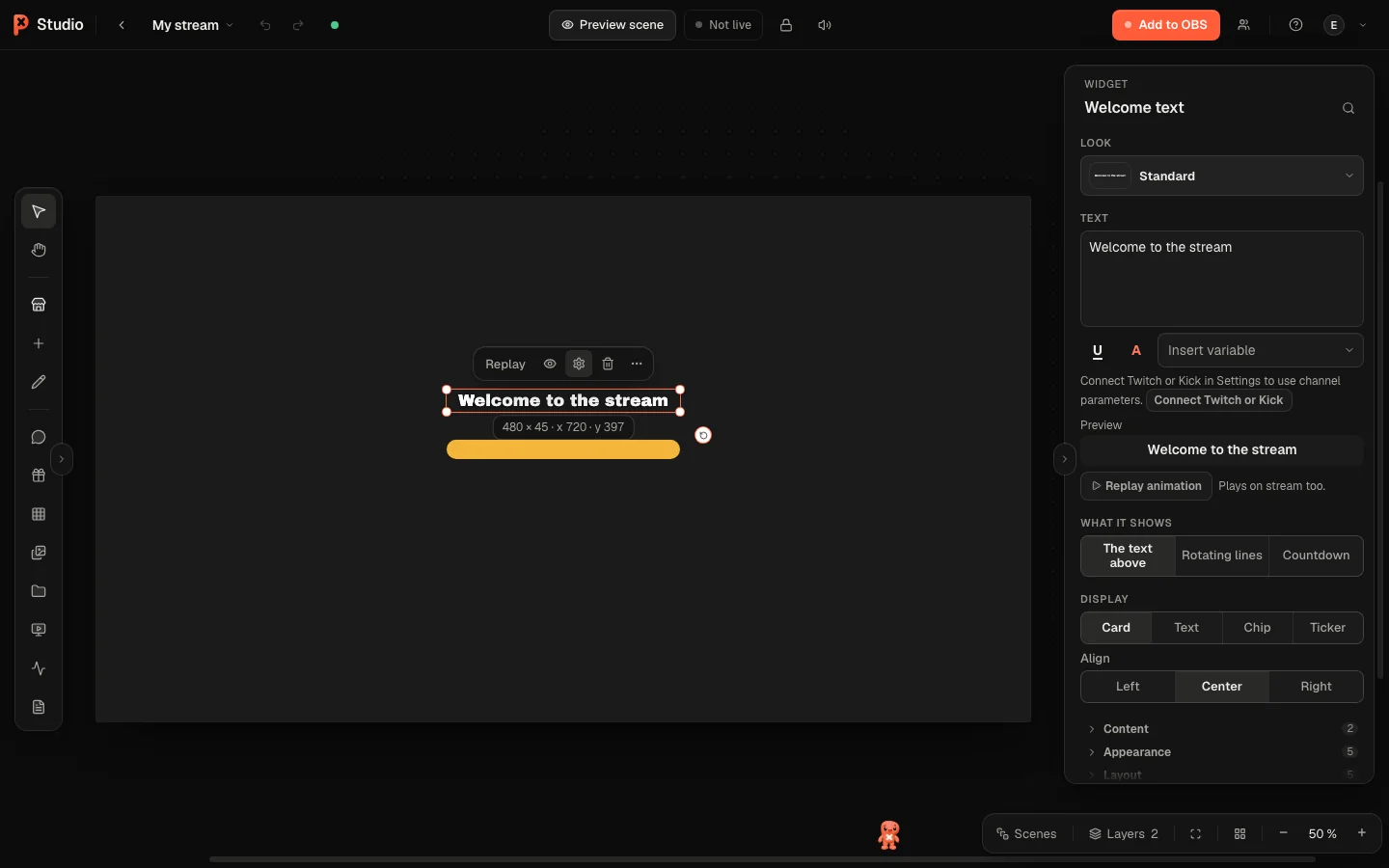
Select a widget and the settings card shows everything you can change. Use Search settings to jump to a setting, Changed to see only what you edited, and Reset to defaults to start over. Position & size sets exact numbers.
Many widgets have a Look section. Choose a look restyles the widget in one click, see Looks and presets.
Arrange and organise
- Duplicate (Cmd+D), Hide, Lock and Delete from overlay are in the small toolbar above a selected widget.
- Bring forward and Send backward change the stacking order. Right-click for Bring to front and Send to back.
- In the layer list you drag to reorder, or use Alt+↑ and Alt+↓.
- Select several widgets with a drag or with Shift-click, then use Delete selected, Hide selected or Duplicate selected.
- Lock stage prevents accidental moves while you are live.
Groups
- Select widgets and press Cmd+G (or Group selection in the right-click menu) to group them. Cmd+Shift+G ungroups.
- A click on any widget of a group selects the whole group. Move, scale, rotate, duplicate, hide, lock or delete it like one widget.
- Hovering a group's widget outlines the whole group. Copy and paste a whole group and it arrives as a new group; copying a single widget from inside a group pastes just that widget.
- Double-click a widget in a group to work on it alone. Esc selects the whole group again.
- In the layer list a group has its own row: click the arrow to fold it, double-click the name to rename it, and use the eye and lock for all of its widgets.
- Drag a layer into a group by dropping it between the group's layers, or indented below them. Drop it outside to take it out again.
- Groups belong to the overlay, so they are the same in every scene. Each scene keeps its own position and visibility of the widgets.
Drag modifiers
| Hold | While dragging |
|---|---|
| Ctrl | turn snapping off |
| Shift | lock to one axis |
| Alt | scale from the center |
| Space | pan the canvas |
Undo and history
Every change can be undone with Cmd+Z and redone with Shift+Cmd+Z (Ctrl on Windows), or with the Undo and Redo arrows in the top bar. Changes Pix made have their own Undo button under Pix's answer. For bigger steps back, open History from the overlay card on the Overlays page: it keeps your last 50 versions and Restore version brings one back.
Was this page helpful?