

PXStudioBot
Your chat bot for Twitch and Kick with commands, timers, loyalty points, giveaways, song requests and moderation.
On this page
PXStudioBot joins your chat and works together with your overlay: a giveaway in chat shows on stream, points earned in chat fill the leaderboard, and a song request plays through your overlay player.
Set up in four steps
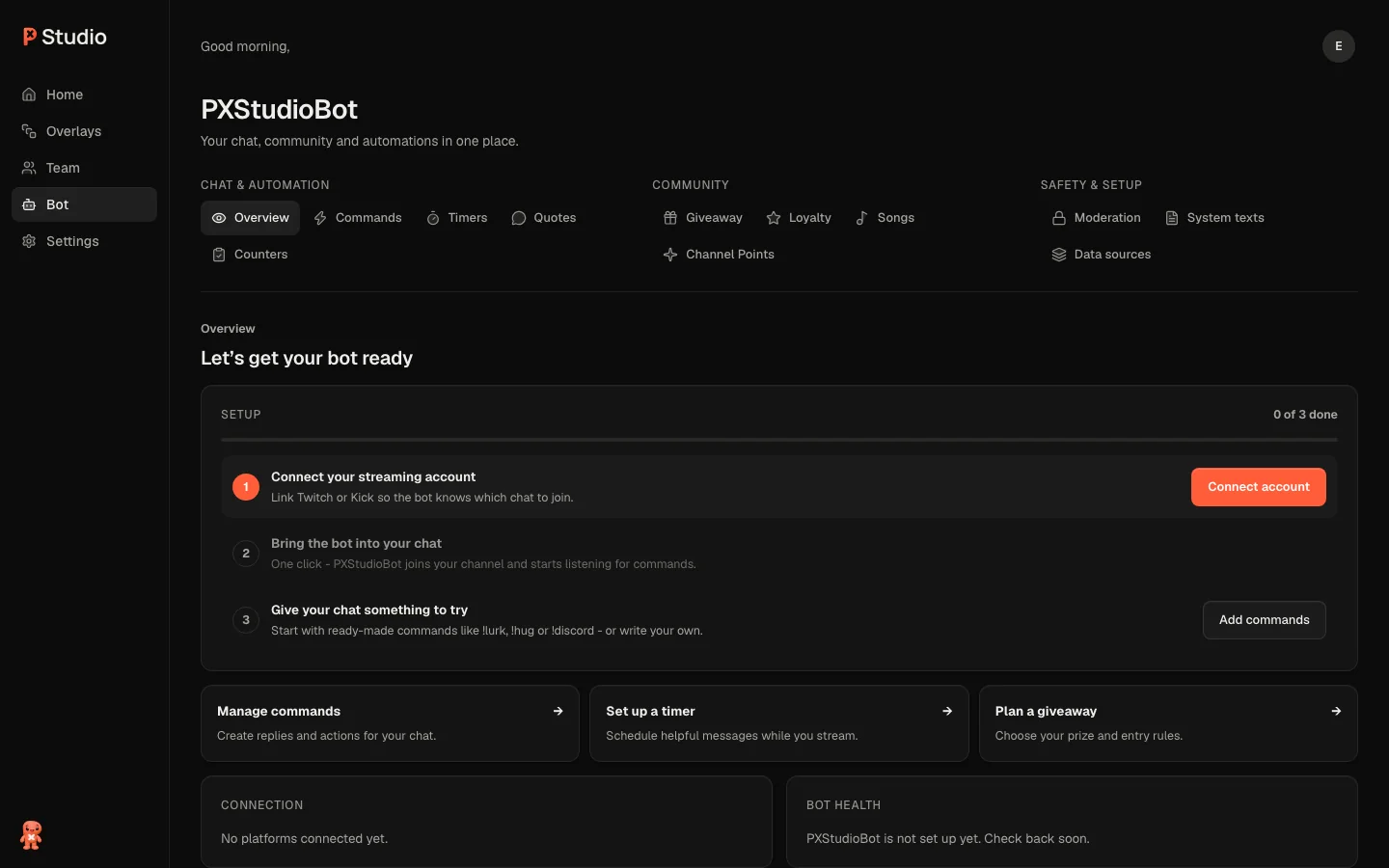
The Overview tab in the bot panel (toolbar PXStudioBot, B) walks you through it.
Connect your streaming account under Settings → Connections (Twitch or Kick).
Join chat: click the join button for your platform. PXStudioBot appears in your chat.
Make PXStudioBot a moderator in your chat, so it can delete messages and time out spammers.
Add commands or turn on the built-ins you want.
What the tabs do
| Tab | For |
|---|---|
| Commands | Built-in and your own commands, see bot commands |
| Quotes | Save and show memorable chat moments |
| Counters | Numbers that commands change |
| Timers | Messages posted on an interval |
| Moderation | Filters for spam, links and banned words, see Moderation |
| Giveaway, Loyalty | Points, rewards and giveaways, see Loyalty and giveaways |
| Songs | Viewer song requests, see Song requests |
| Channel Points | Twitch channel point rewards that trigger overlay actions |
| System texts | Change what the bot replies |
Timers
Under Timers, Add timer posts a message every few minutes. Interval (minutes), Min. chat activity and Only while live keep it from talking to an empty chat.
Channel Points
On Twitch, a channel point reward can fire a widget, show a GIF, switch the scene, make the bot say something or move a widget to a saved spot.
Was this page helpful?