

Looks and presets
Restyle a single widget with a look, or start a whole overlay from a ready-made preset.
On this page
PX Studio separates two things: a look changes how one widget appears, a preset is a complete setup with scenes, widgets and background.
Looks for widgets
Select a widget, open Look in the settings card and click Choose a look. Preview the options and confirm with Apply look. Your texts and settings stay; only the style changes.
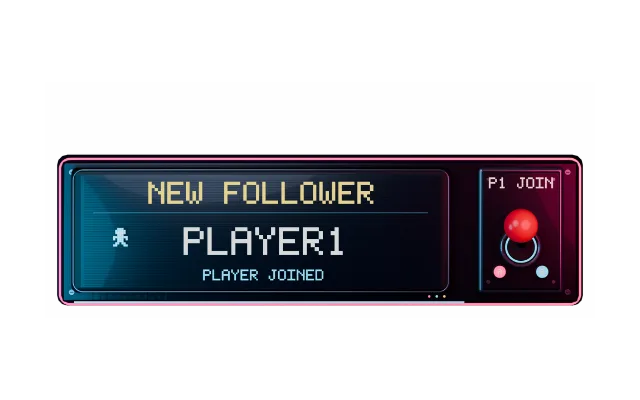
alertboxlookretro-arcade| Look | Style |
|---|---|
| Standard | Bold type, no card needed |
| Miami | Synthwave sunset |
| Loot Drop | Loot-crate card with rarity glow |
| Comic Pop | Comic sticker slam |
| Cinematic | Letterboxed trailer title |
| Esports | Broadcast lower third |
| Terminal | Green phosphor terminal |
| Blocky | Toy-brick drop and bounce |
| Lo-Fi | Cozy handwritten journal card |
| Neon Pulse | Glowing neon tube sign |
| Midnight | Moonlit engraved medallion |
| Pastel Pop | Candy sticker drop |
| Retro Arcade | 8-bit outrun CRT cabinet |
| Gilded | Art-deco gold plate |
Presets for whole overlays
Presets are complete setups, not just a look. The ready-made looks (Neon, Retro Arcade, Pastel and Miami Drive) are getting a big upgrade and are marked Big upgrade coming soon in New overlay; until then, start with Blank. Once they are back, choose one instead of Blank. You get four scenes (Starting Soon, Live, BRB and Ending) with an animated background and widgets already in place. Change anything afterwards like in any other overlay.
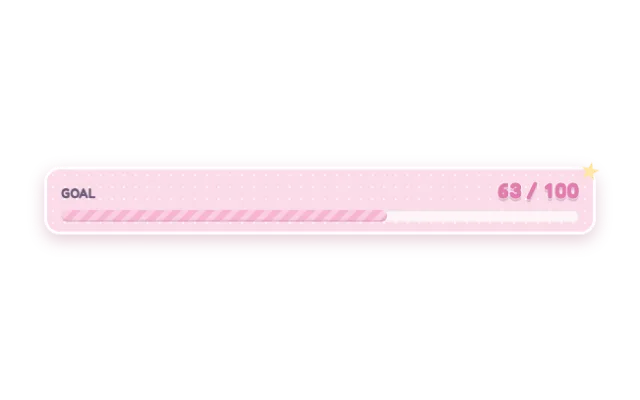
goal-barlookpastel-popPacks
Packs bundle overlays you bought or unlocked. They appear under Your packs on the Overlays page. Bought one elsewhere, for example on Etsy? Use Redeem a key or Settings → Plan & codes → Redeem code.
Was this page helpful?