

Alerts
Show follows, subs, Bits, Kicks, raids and Ko-fi tips on stream, styled and tested before you go live.
On this page
The Alertbox widget pops up whenever something happens on your channel. One Alertbox covers all events; you choose which ones it shows.
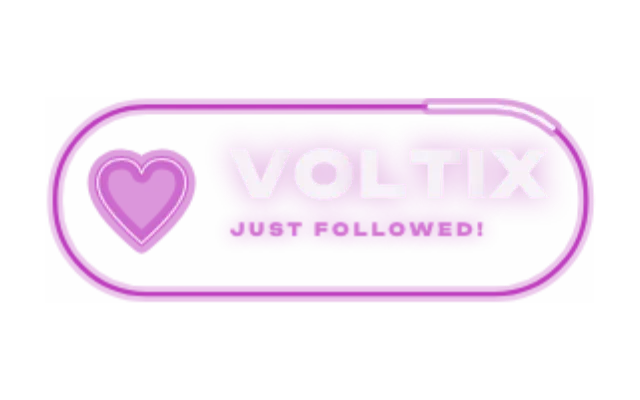
alertboxlookneon-pulseSet up alerts
Connect your channel under Settings → Connections. Alerts work with Twitch and Kick; Ko-fi tips arrive through the Ko-fi connection.
In the editor, open Add, choose Alertbox from Alerts & Goals and place it where alerts should appear.
In the settings card, open Events and turn on what you want: Show follows, Show new subs, Show gift subs, Show resubs, Show Bits and Kicks, Show raids and the Ko-fi events.
Under Sound & voice, pick a sound. Read alerts out loud speaks the alert message.
Under Test & playback, click Test alert to see it on the canvas and in OBS.
Give it a style
Open Look → Choose a look to restyle the alert in one click: Miami, Loot Drop, Comic Pop, Cinematic, Esports, Terminal, Blocky, Lo-Fi, Neon Pulse, Midnight, Pastel Pop, Retro Arcade, Gilded or the clean Standard. See Looks and presets.
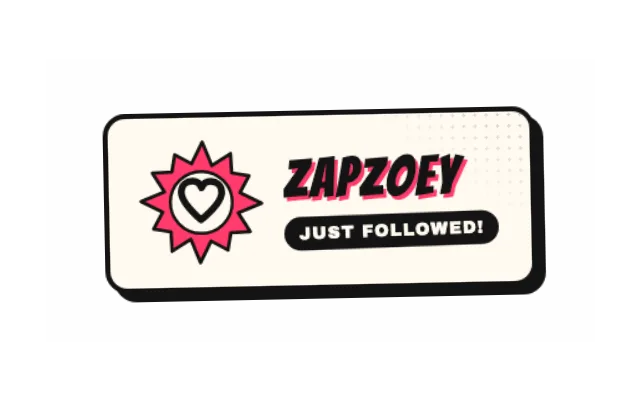
alertboxlookcomic-popDuring the stream
- Skip alert ends the current alert.
- Pause holds alerts back. Paused alerts are dropped, so resume before important moments.
- Hide stream events (tests stay) in the canvas toolbar hides real alerts in the editor preview while you keep testing.
- The Event List widget and the Activity panel show what happened, filtered by Follows, Subs, Cheers, Raids, Tips, Redeems or Hype.
Was this page helpful?