

Socials
Show your social handles on stream, rotating one at a time or all together as a list, bar or ticker.
On this page
Socials tells viewers where else to find you. Add your accounts once and the widget cycles through them with the right platform icon, or shows them all at once. It knows more than 30 platforms, from Twitch, YouTube, TikTok and Instagram to Discord, Ko-fi and Spotify.
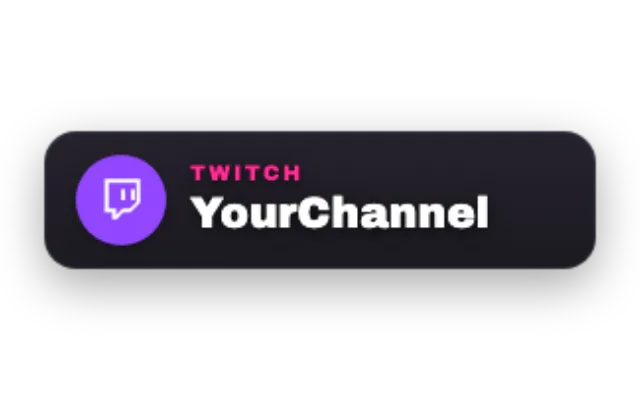
social-rotatorlookstandardAdd it
Click Add in the toolbar (or press W) and pick Socials under Text & Info.
Under Accounts, pick a Platform and type your handle. Click Add account for more, up to 10.
Choose a Layout and pick a look with Choose a look.
Drag it into place, for example in a lower corner of your gameplay scene.
Layouts
| Layout | What viewers see |
|---|---|
| Rotate one card | One account at a time, switching every few seconds |
| List (all accounts) | Every account stacked |
| Bar (one row) | Every account side by side |
| Ticker (scrolling band) | A scrolling band, great as a lower third |
For Rotate one card, set Seconds per account, turn on Shuffle order or turn on Show rotation bar.
Show changes the size of each entry: Full card, Chip (one line) or Icon only.
What each entry shows
- Show platform name and Show handle are on by default.
- Show QR code adds a code viewers can scan with their phone.
- Show follower count shows a live number for your connected Twitch account. Other platforms have no live number.
- Top line and Call to action add a short line such as "Follow me".
Control it live
Select the widget and a Platform stepper appears above it to jump to the next or previous account. It also works from the Deck and a Stream Deck. You and your mods can use !rotator next and !rotator prev in chat.
Tips
- Glyph colors switches between brand colors, the look's accent or plain text color.
- Fit text slightly shrinks the text in the Bar layout while keeping it readable.
- To hide an account for a while, untick Enabled instead of deleting it.
Looks
Pick a look under Look in the settings card. Every look is a complete style; colors and fonts you set yourself stay on top. 15 looks are available:
Command reference
Every chat command this widget understands, with the default command names. Values in angle brackets are placeholders, for example a number.
| Command | What it does |
|---|---|
!rotator next | Next account |
!rotator prev | Previous account |
Settings
All settings live in the floating settings card on the right of the editor. Defaults are what a new widget starts with.
Accounts
| Setting | Default | Values | Notes |
|---|---|---|---|
| Accounts | 1 item | Up to 10 items |
Layout
| Setting | Default | Values | Notes |
|---|---|---|---|
| Layout | Rotate one card | Rotate one card, List (all accounts), Bar (one row), Ticker (scrolling band) | |
| Width (px) | 280 | 240 to 900 | Minimum width. Long text expands the card; ticker keeps this viewport width. |
| Fit text | On | On or off | Slightly reduces Bar text while keeping it readable. Long handles stay on one line. |
| Compact | Off | On or off | |
| Scale (%) | 24 | 16 to 64 |
Appearance
| Setting | Default | Values | Notes |
|---|---|---|---|
| Show | Full card | Full card, Chip (one line), Icon only | |
| Glyph colors | Brand colors | Brand colors, The look's accent, Mono (text color) | |
| Card plate | On | On or off | Standard look: filled card behind badge and handle. |
| Plate tone | Dark | Dark, Light | Only used when Card plate is on. |
| Accent color | Look default | Any color |
Content
| Setting | Default | Values | Notes |
|---|---|---|---|
| Top line | Empty | Text | |
| Call to action | Empty | Text | |
| Show platform name | On | On or off | |
| Show handle | On | On or off | |
| Show QR code | Off | On or off | |
| Show follower count | Off | On or off | Only the connected Twitch account has a live number. |
Behavior
| Setting | Default | Values | Notes |
|---|---|---|---|
| Seconds per account | 8 | 3 to 60 | Only used in the Rotate layout. |
| Shuffle order | Off | On or off | Only used in the Rotate layout. |
| Show rotation bar | Off | On or off | Only used in the Rotate layout. |
Was this page helpful?