

Scenes
One overlay, several scenes. Prepare a scene in preview and put it live as the program scene.
On this page
A scene is one arrangement of your overlay, for example Starting Soon, Live, BRB and Ending. All scenes live in the same overlay and the same OBS source, so switching a scene never needs a change in OBS.
Program and preview
- Program is what OBS shows. Exactly one scene is the program scene.
- Any other scene is a preview you can edit without viewers seeing it. The editor reminds you: "Viewers don't see this scene. Make it the program scene to show it in OBS."
Work with scenes
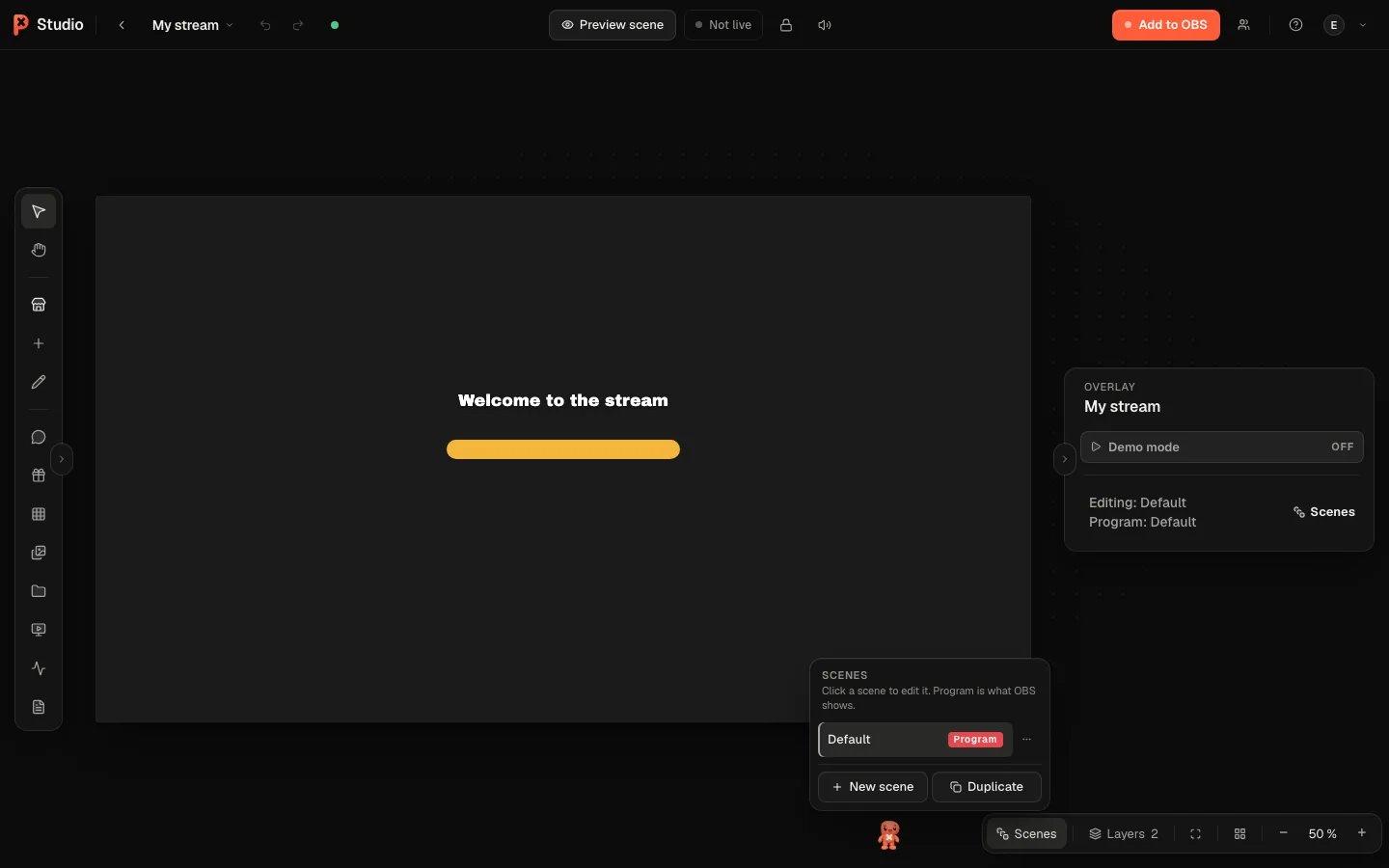
Click New scene to add one, or Duplicate an existing scene to start from it.
Edit the scene on the canvas like usual.
Click Make program scene to put it live. The change reaches OBS instantly.
Create preview makes a working copy of the program scene. Edit it in peace and use Push preview to send all changes live at once.
Switch fast
- Cmd+Alt+→ and Cmd+Alt+← jump to the next or previous scene.
- Run show focuses the editor on going live.
- The Deck on your phone and the Stream Deck switch scenes with one tap.
- Moderators with the right permission can switch scenes for you, see Team.
Was this page helpful?